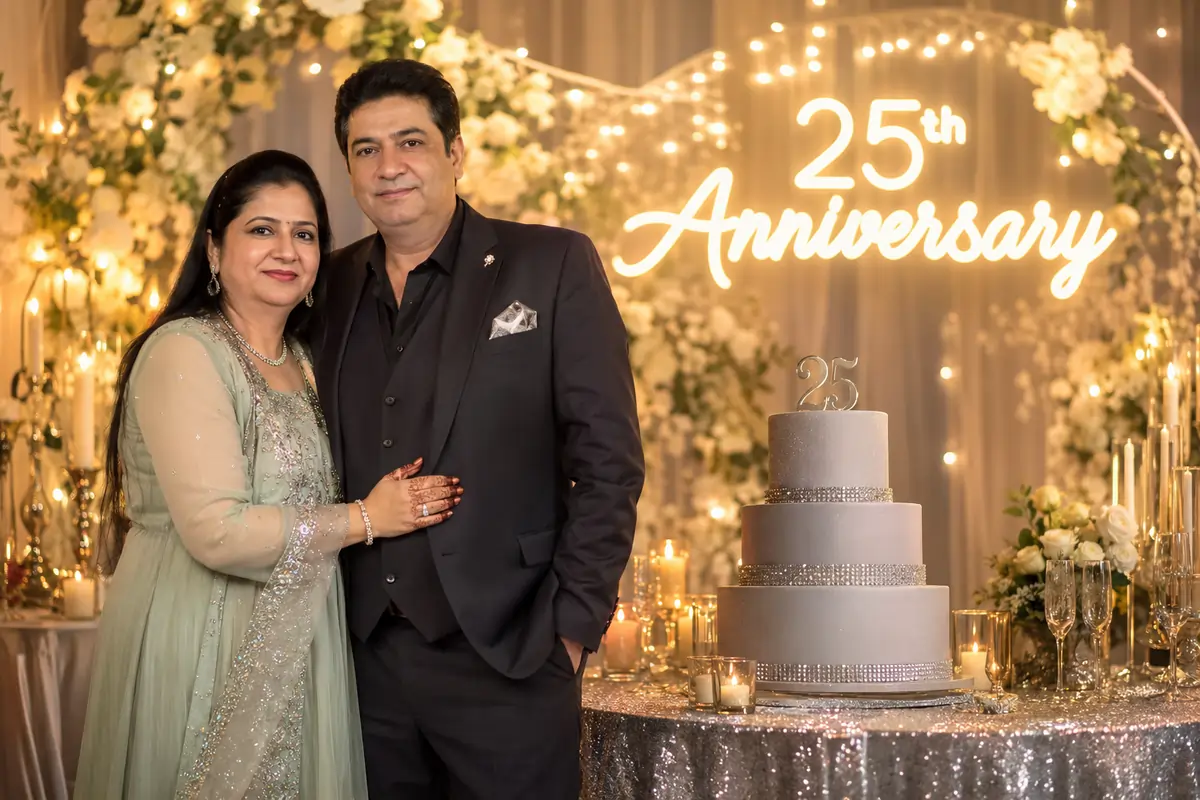
The Challenge of Editing Anniversary Photos
As someone who regularly edits event photos and videos, I get this request a lot: "Can you take this normal picture of my parents and put them in a beautiful anniversary background?" A 25th Wedding Anniversary is a massive milestone, but the reality is that the most genuine photos we have of our loved ones are often taken in cluttered living rooms or against plain walls.
Naturally, people are turning to AI photo editing tools to fix this. But here is the problem: generative AI loves to "beautify" images. When you upload a picture and ask the tool to add a luxurious background, it usually decides to change the couple's faces too. It might tweak a jawline, smooth out wrinkles, or change their clothes completely. For an anniversary memory, altering someone's true identity ruins the entire point of the picture.
To fix this, I put together a strict anniversary edit prompt. The goal here is simple: lock the facial features and original clothing completely, while only upgrading the environment behind them.
Use the uploaded photo as the only face and identity reference. Keep both people exactly unchanged — same face, same hairstyle, same skin tone, same body shape, same clothes, same jewelry, same expressions, and same overall appearance. Do not modify or replace any facial features, outfit details, accessories, or pose. Maintain perfect identity consistency.
Transform the scene into a luxurious and emotional 25th Wedding Anniversary celebration. Add elegant silver-themed anniversary decorations, glowing fairy lights, premium floral arrangements, candles, soft golden ambient lighting, and a beautiful “25th Anniversary” neon sign in the background. Add a classy anniversary cake on a decorated table with subtle champagne glasses and romantic bokeh lighting. The couple should look naturally present in the scene with cinematic photography quality.
Style: ultra realistic, high detail, cinematic, professional photography, soft depth of field, warm romantic atmosphere, natural skin texture, premium anniversary setup, 8K quality.
Important:
Do NOT change faces
Do NOT change clothes
Do NOT change jewelry/accessories
Do NOT make them look younger or older
Preserve original pose and body structure
Only enhance background and anniversary environment naturally
Keep photo realistic and elegant, not AI-looking
How the "Before and After" Actually Looks
In a standard workflow, your "Before" image might be a couple sitting on a regular sofa with poor indoor lighting. When you run this specific prompt, the "After" image transforms that sofa into a premium seating area surrounded by silver decorations, soft bokeh, and fairy lights. The magic isn't just in the new background—it's in the fact that the couple sitting there looks exactly like your parents, not digital avatars.
Personal Editing Tip: Start with a Good Base
AI cannot enhance features that are completely blurred out. Always start with a high-resolution, well-lit reference photo. If the original photo is blurry, run it through an AI upscaler before you try to edit the background.
Tool Comparison: Where to Use This Prompt
Because we are editing an existing photo rather than starting from scratch, the tool you choose matters a lot. Here is how I usually approach it:
- Photoshop Generative Fill: This is honestly the safest method. You can manually select the background and leave the faces completely untouched. You would paste the second half of the prompt (the decoration details) into the prompt bar.
- Midjourney V6: If you are using Midjourney, you will need to use this prompt alongside the character reference command (
--cref) and set the character weight to maximum (--cw 100). Midjourney provides the best cinematic lighting, but it still requires some trial and error to get the faces perfect. - Canva Magic Edit: A great beginner-friendly option. Simply brush over the background and paste the prompt to see quick variations.
Common Mistakes to Avoid
Even with a great prompt, things can go wrong if you aren't careful. One of the biggest mistakes I see is people forgetting to lock the clothing. If you don't specifically tell the AI "Do NOT change clothes," it will often generate a random tuxedo or wedding dress, which immediately makes the photo look fake. Always keep the negative instructions in the text block.
Take your time, try a few different generations, and you'll end up with a beautiful digital memory that your family will actually want to print and frame.
Frequently Asked Questions (FAQ)
How do I stop AI from changing faces in my photos?
The best method is to use masking tools like Photoshop Generative Fill, where you select only the background. If using a text-to-image tool, use explicit negative constraints like "Do NOT change faces" in your prompt.
Can I adapt this prompt for a Golden (50th) Anniversary?
Yes. Just replace "25th" with "50th" and change the "silver-themed" keywords to "gold-themed" for an accurate golden jubilee aesthetic.
Why is my AI edited photo looking blurry?
Blurriness usually happens if your original source photo is low quality. AI struggles to enhance features that aren't clearly visible. Always start with a high-resolution base image.